How to install and activate your eSIM
Thank you for choosing our eSIM service! In this guide, you will learn how to set up your eSIM and the key features of this service to use it properly.
⚠️ CRUCIAL REMINDER: After installing your eSIM, you MUST enable data roaming on the new eSIM for it to work properly. Go to Settings > Mobile Service/Cellular > [Your eSIM] > Data Roaming and enable it. This is essential for your eSIM to connect to mobile networks.
First of all, for any device, you need to check if your device is compatible with eSIM technology. Not all devices support eSIM, so it's crucial to verify this first.
To check the compatibility, visit the compatibility page.
General Steps
We recommend installing the day before your trip and activating it by selecting our eSIM for "mobile data" on your phone settings, once you arrive at your destination.
Use QR Code Installation if you have another device you can scan from, alternatively follow the Manual setup instructions.
Choose Your Device
iPhone
If you are an iPhone user, you may be wondering how to set up an eSIM on your mobile device. In this guide, you will learn how to set up your eSIM and the key features of this service to use it properly on your iPhone.
What You Need
- An iPhone compatible with eSIM
- The installation email
Installation Steps
1. Add eSIM
Go to Settings > Mobile Service/Cellular and tap "add eSIM"

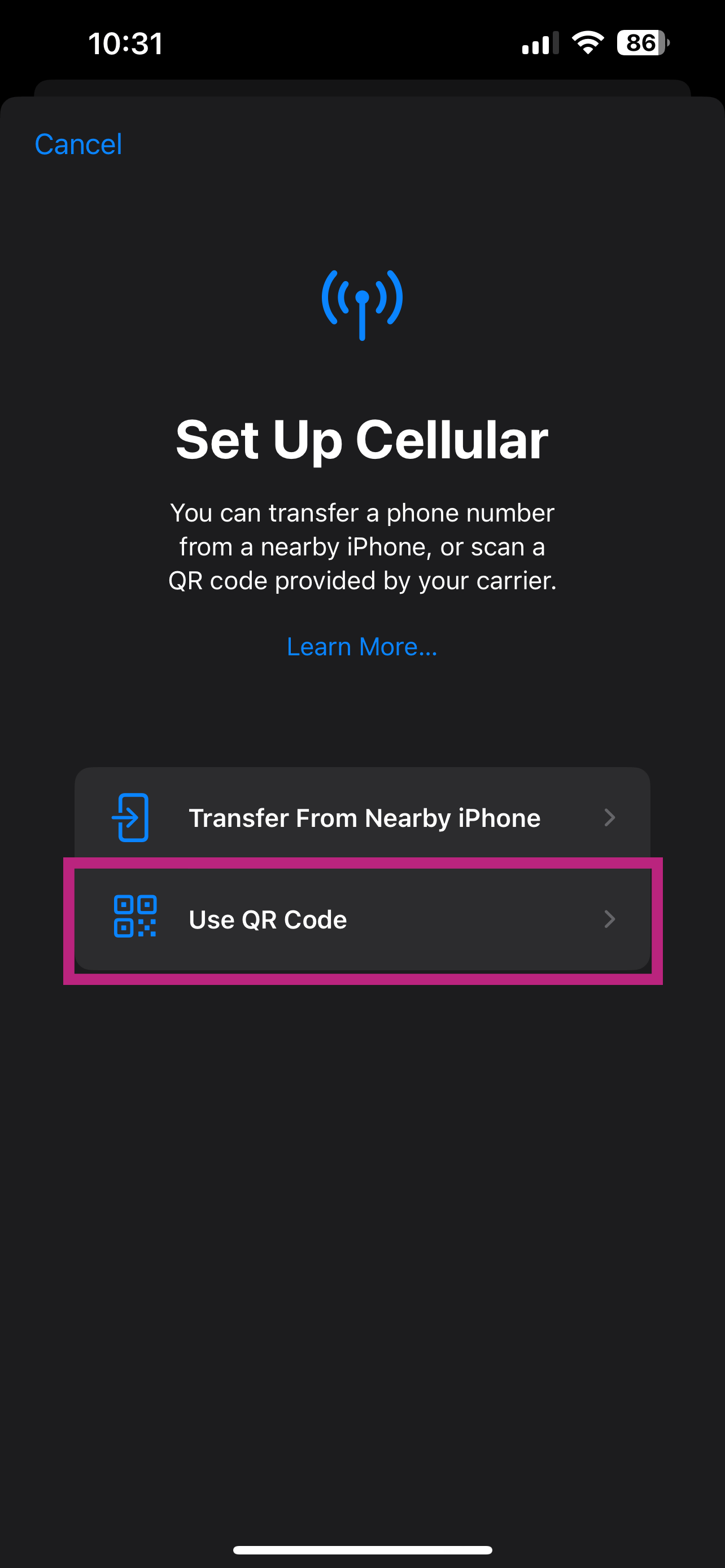
2. Use QR code
Tap "Use a QR code"
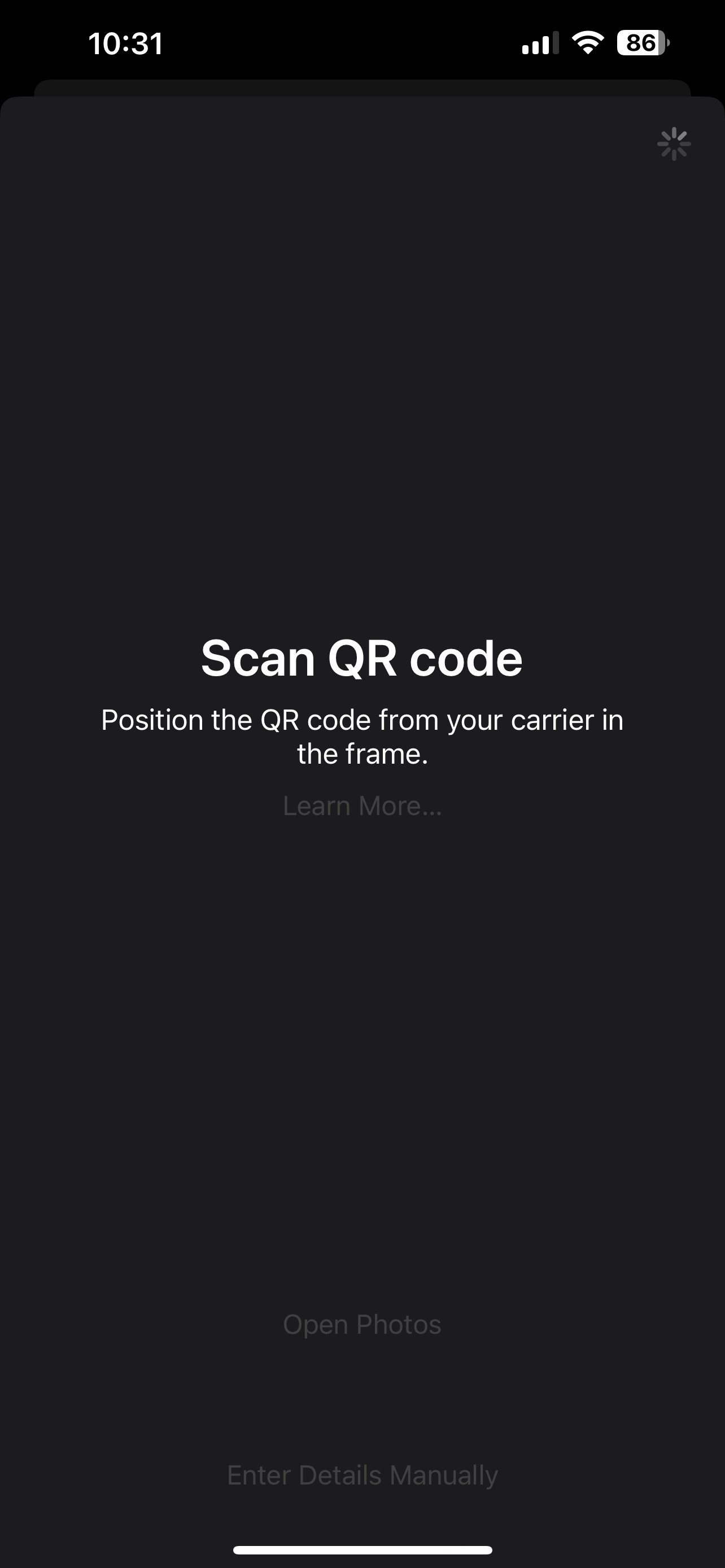
3. Scan QR code
Scan the QR code received by email or enter details of eSIM manually (if you can't scan)
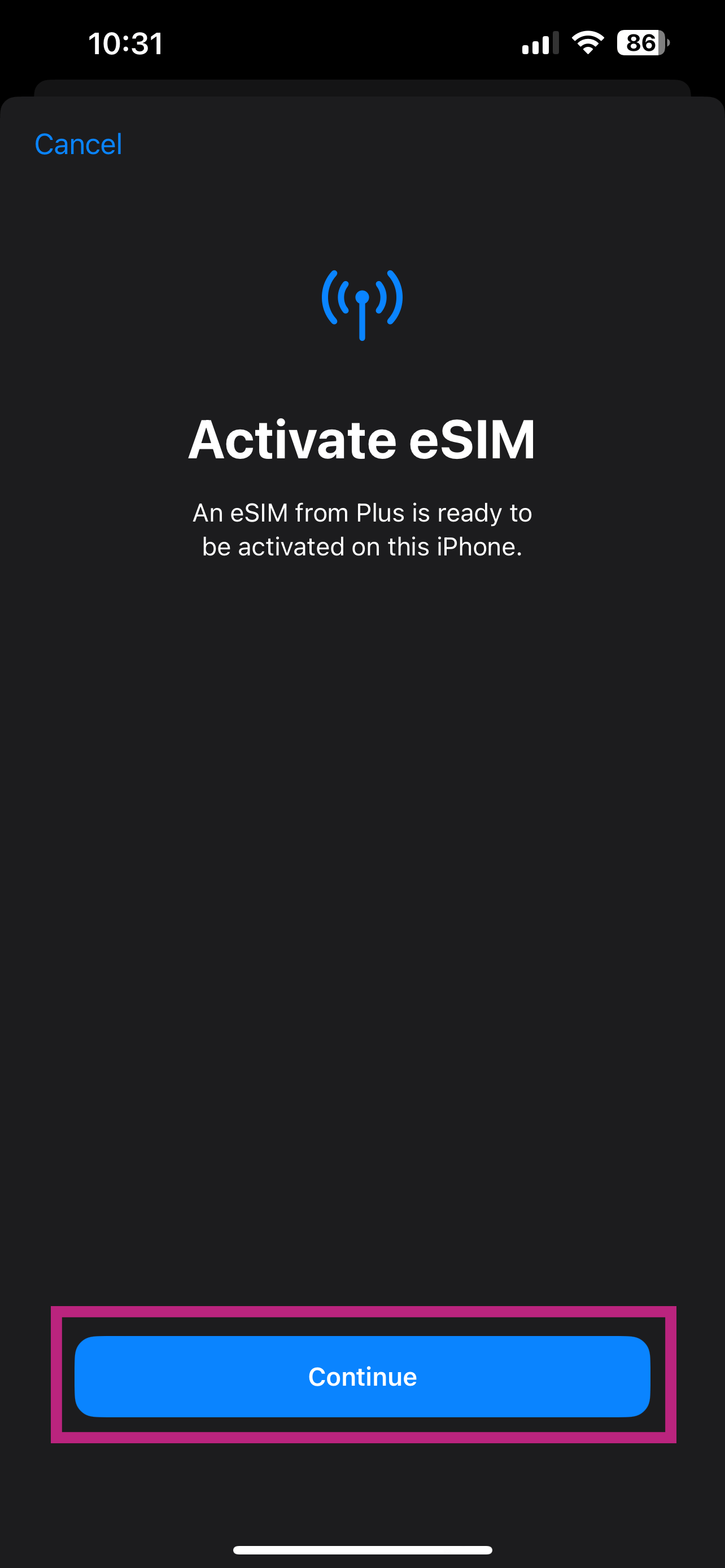
4. Activate eSIM
After scanning the QR code, activate the eSIM by tapping continue
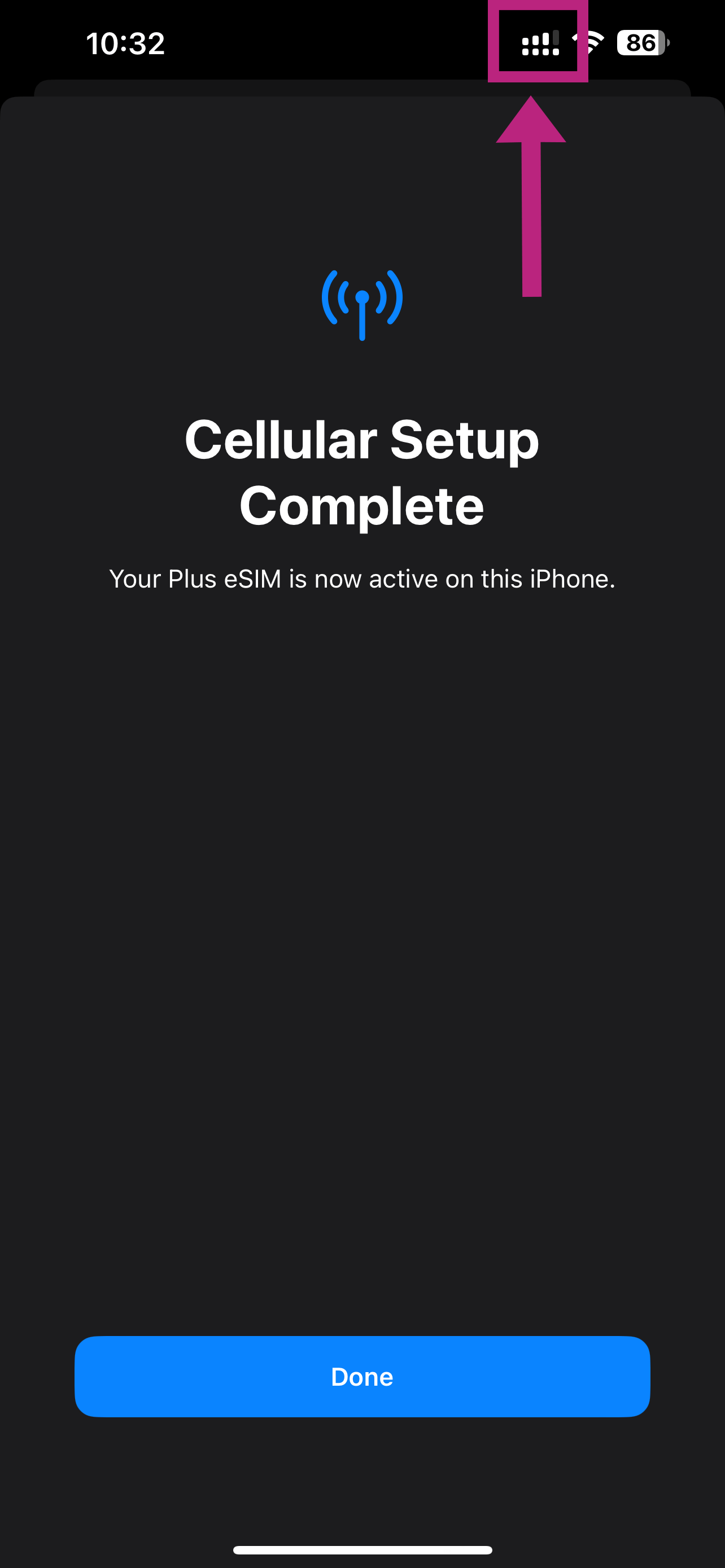
5. eSIM Activation completed
Activation of eSIM completed! Make sure you have 2 network signal bars on top
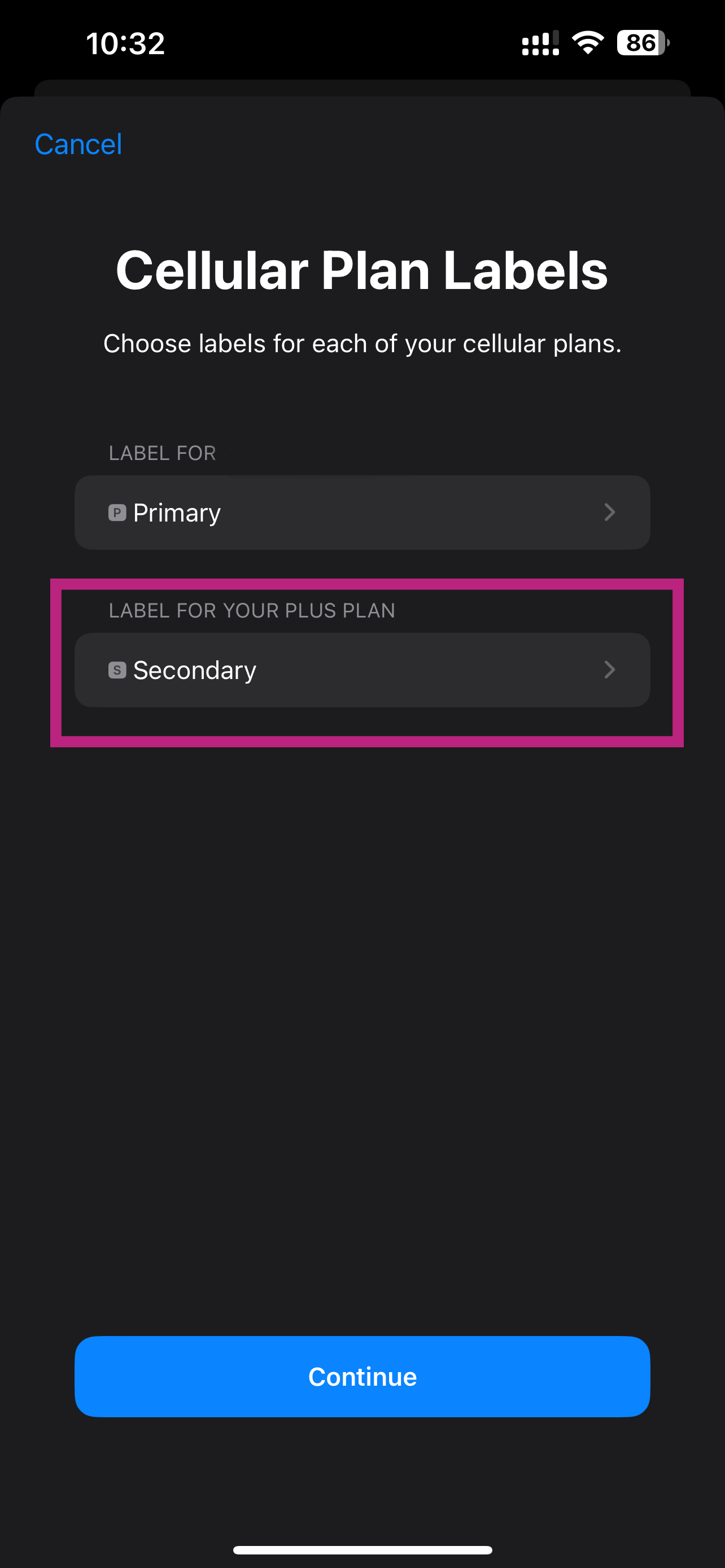
6. Select a label for your plan
Tap the new eSIM installed to rename it
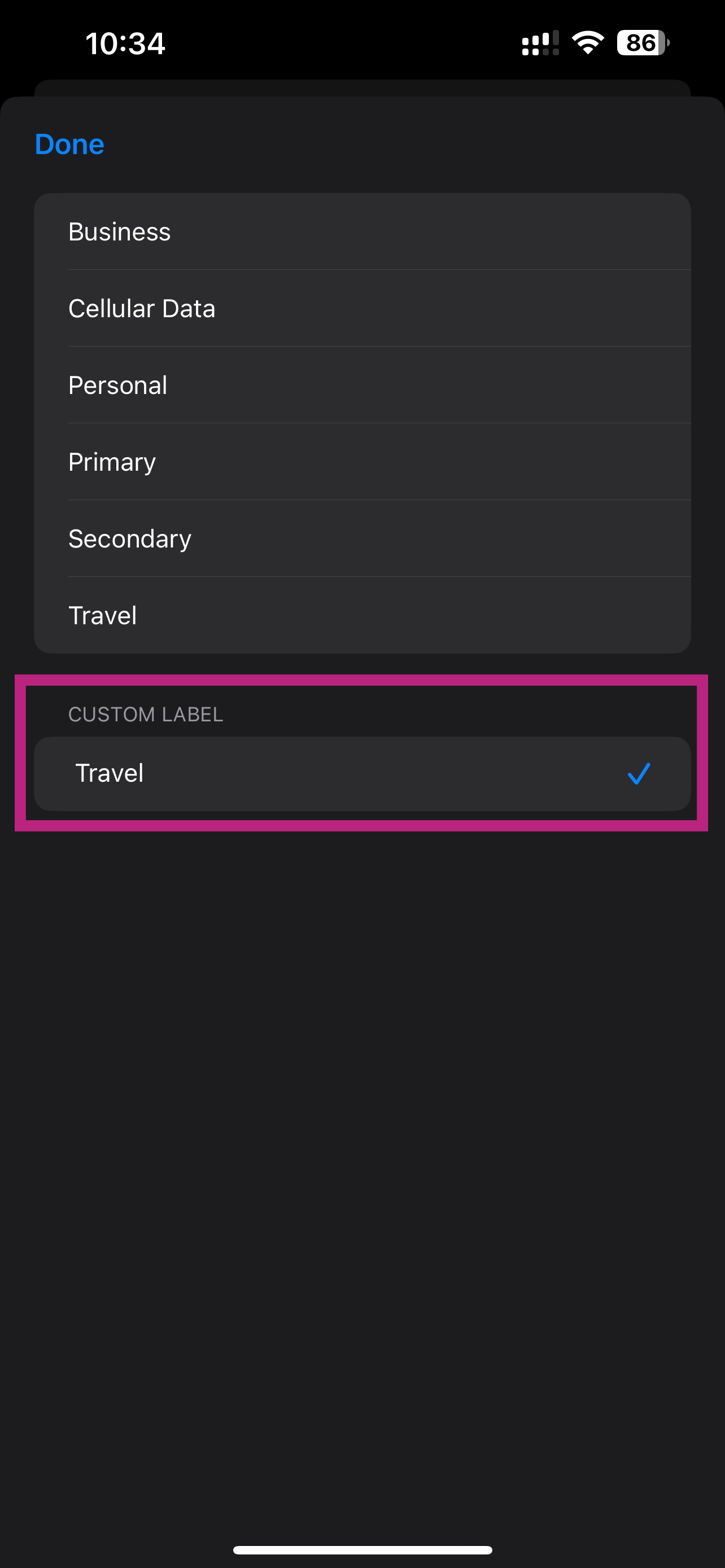
7. Customize the label of the eSIM
Rename it to your preferred label (e.g., "Travel eSIM")
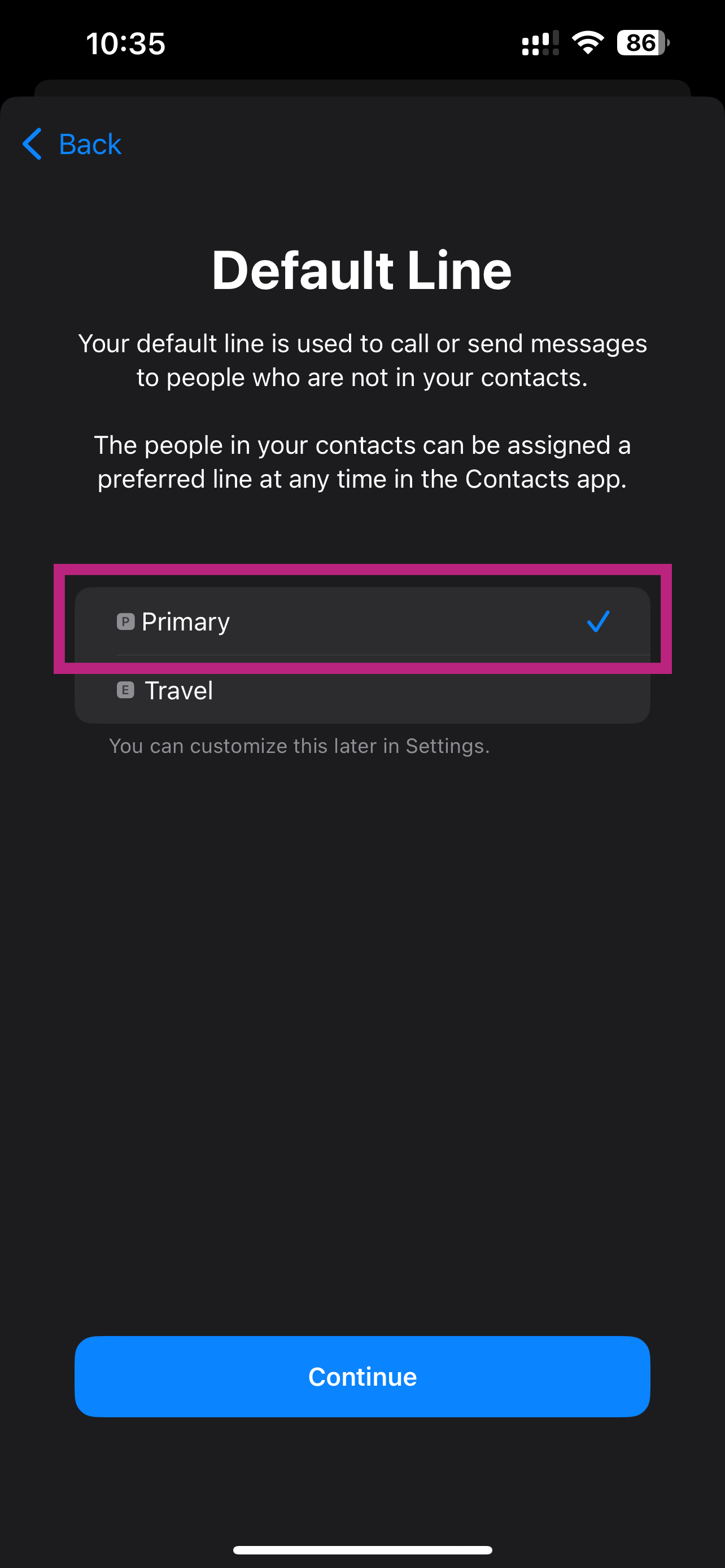
8. Set default phone line
Set your Primary SIM as Default Line
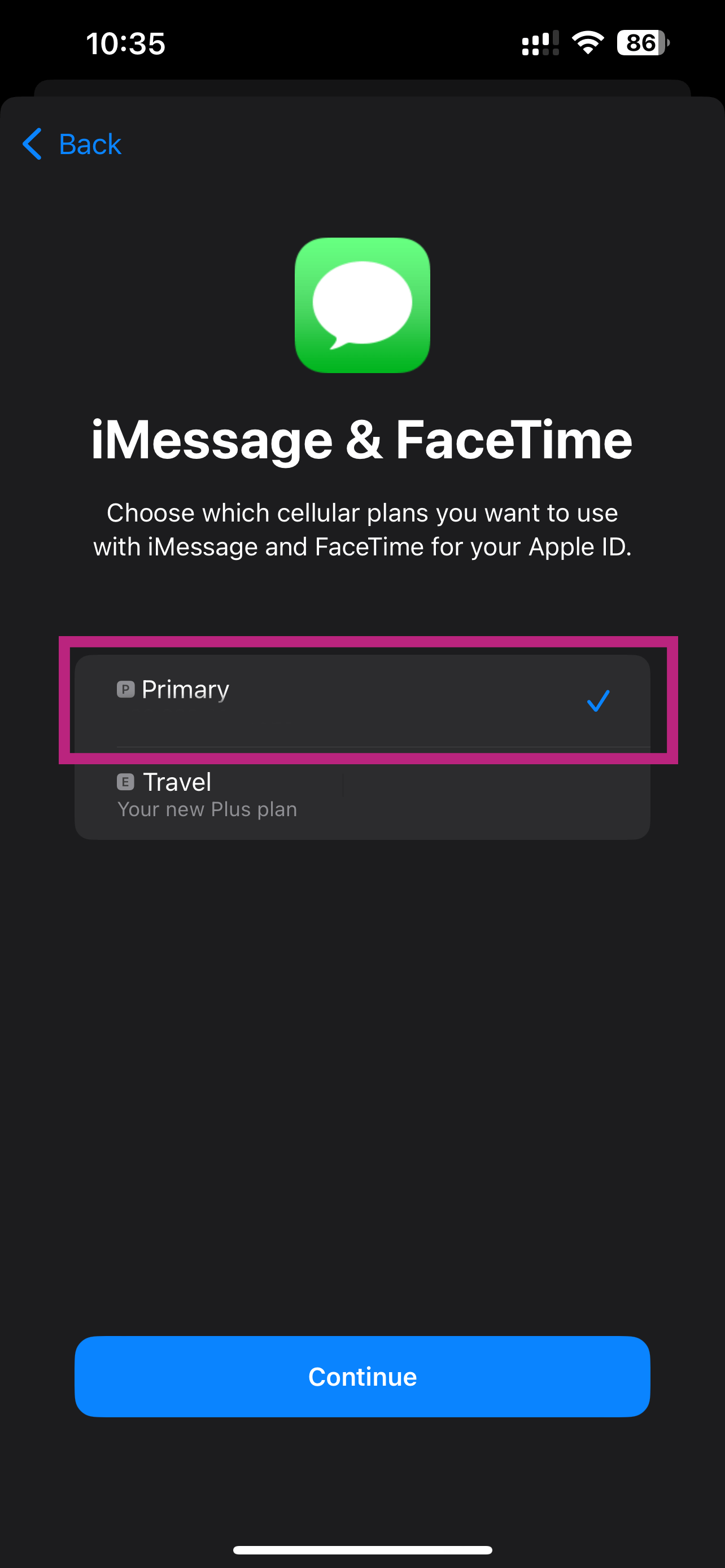
9. Set default line for iMessage and Facetime
Set your Primary SIM for iMessage & FaceTime
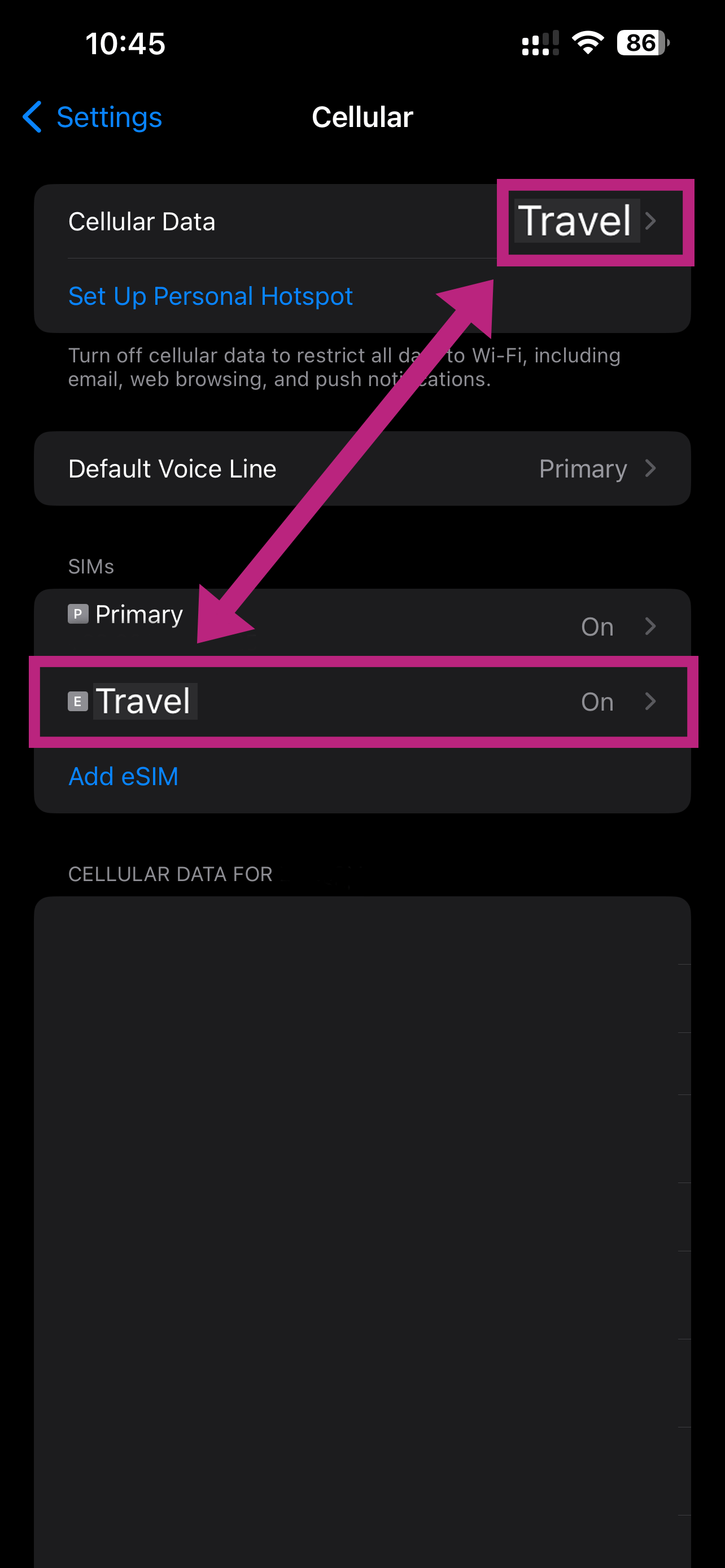
10. eSIM is installed
Go to Settings > Mobile Service/Cellular and make sure Cellular Data is set to your new eSIM
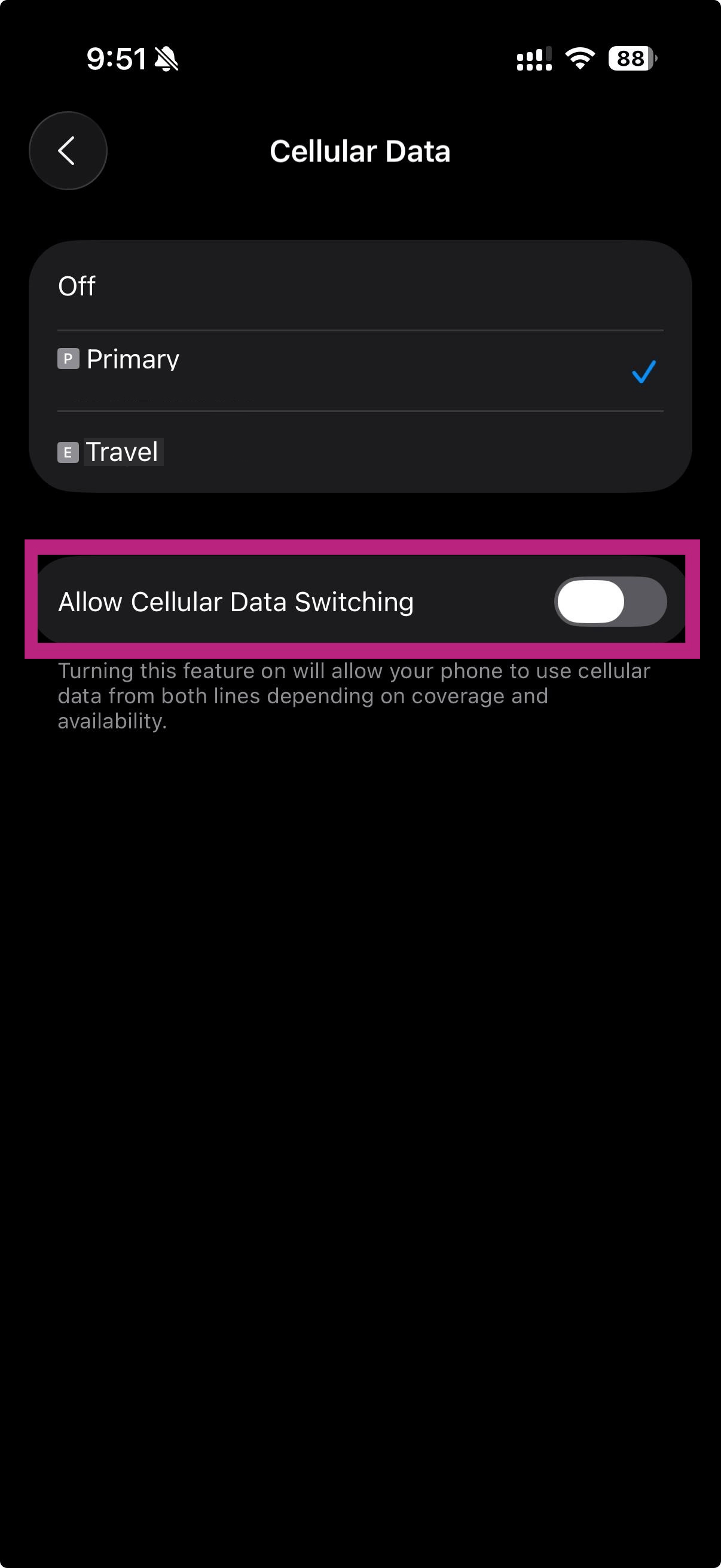
11. Disable Cellular Data Switching
Go to Settings > Mobile Service/Cellular > Cellular Data and make sure "Allow Cellular Data Switching" is disabled
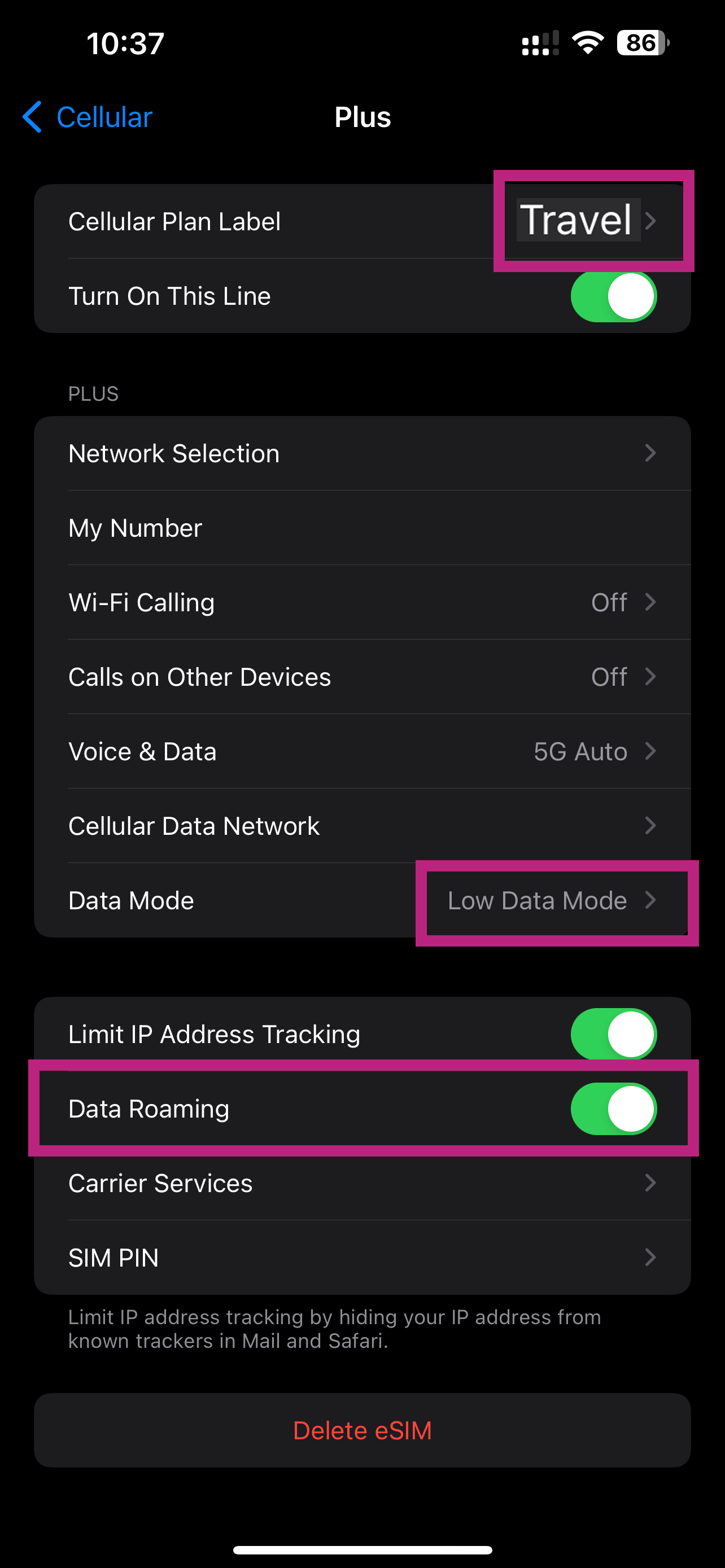
12. Enable roaming on eSIM
Enable data roaming on the new eSIM
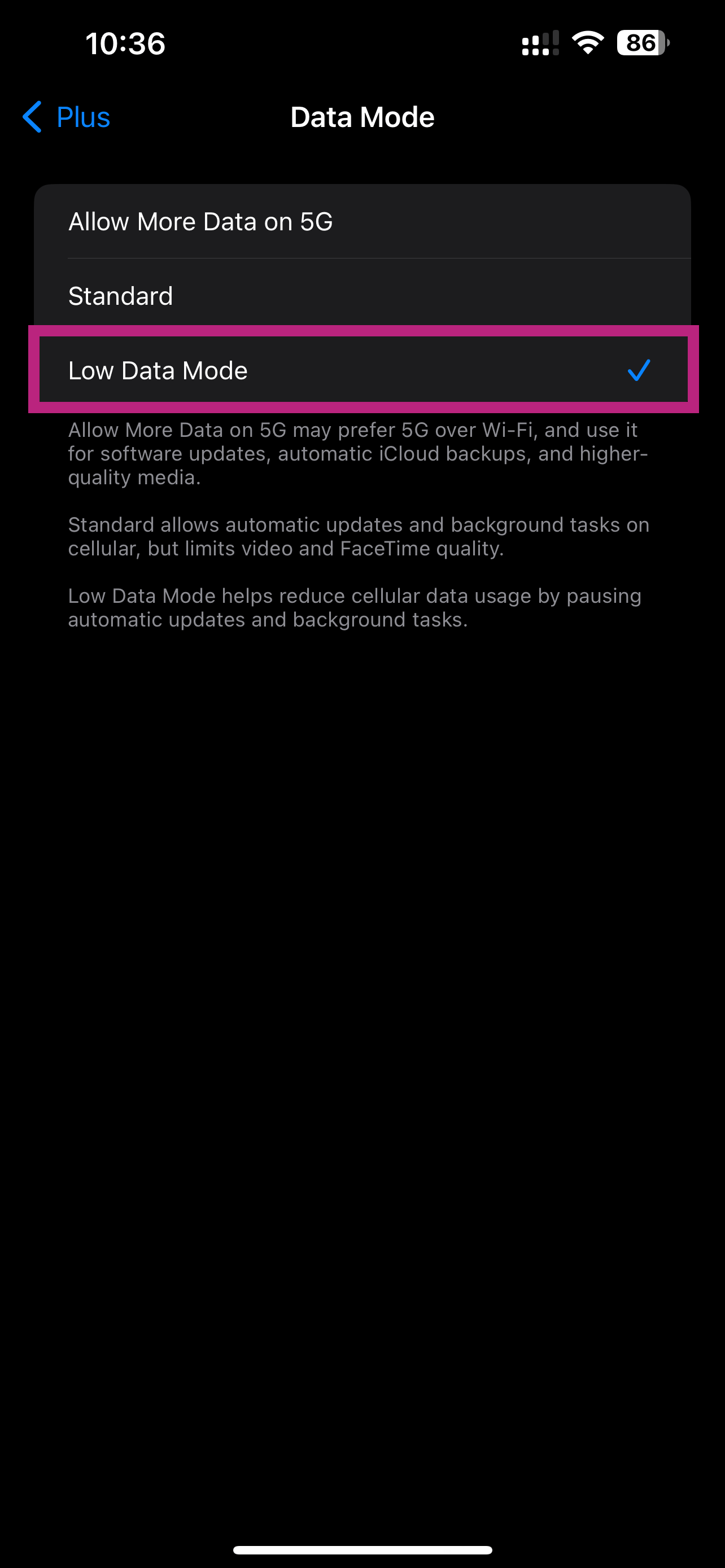
13. Enable low data mode on eSIM
Tap "Data Mode" and make sure "Low Data Mode" is selected
IMPORTANT: If you are not in the destination country, you need to select your primary SIM as "Cellular Data" on step 10 and change it after you arrive at your destination.
Manual iOS Setup Instructions
If you cannot scan the QR code, you can enter the details manually:
- Go to Settings > Cellular/Mobile Data > Add eSIM or Set up Cellular/Mobile Service > Use QR Code on your device.
- Tap "Enter Details Manually" and enter the SM-DP+ Address and Activation Code by copying them, tap "Next", then tap "Continue" twice and wait for a while. Your eSIM will connect to the network, this may take a few minutes, then tap "Done".
- Choose a label for your new eSIM plan.
- Choose "Primary" for your default line, then tap "Continue".
- Choose the "Primary" you want to use with iMessage and FaceTime for your Apple ID, then tap "Continue".
- Choose your new eSIM plan for cellular/mobile data, then tap "Continue".
Samsung Phone
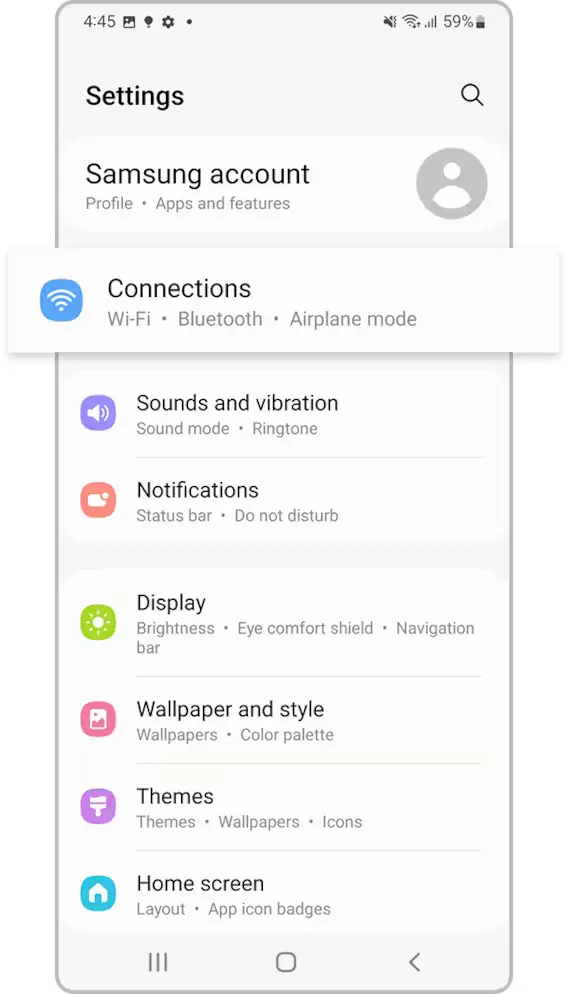
1. Go to Settings > Connection
Open Settings and tap on "Connection"
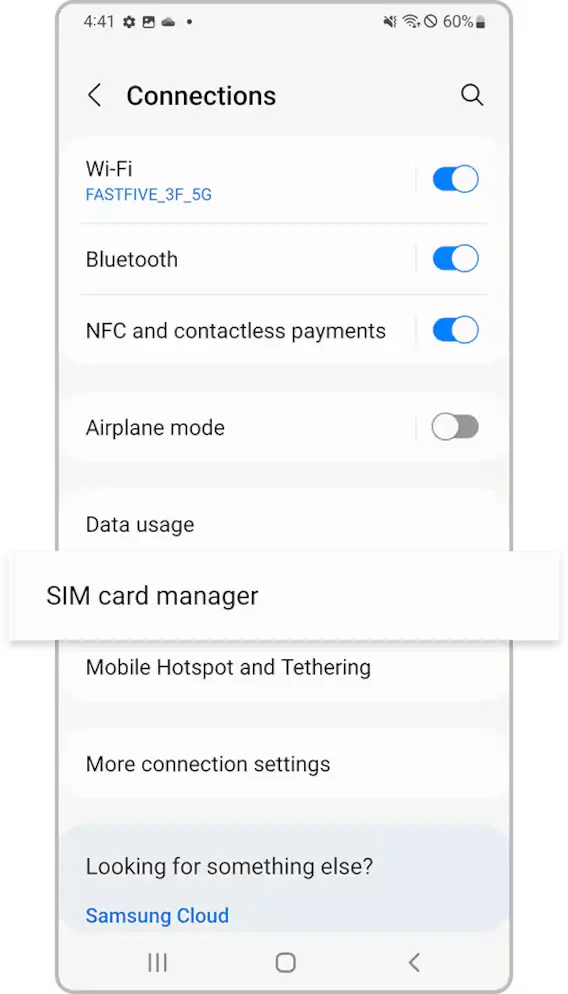
2. Tap on "SIM manager"
Find and tap on "SIM manager" in the Connection settings
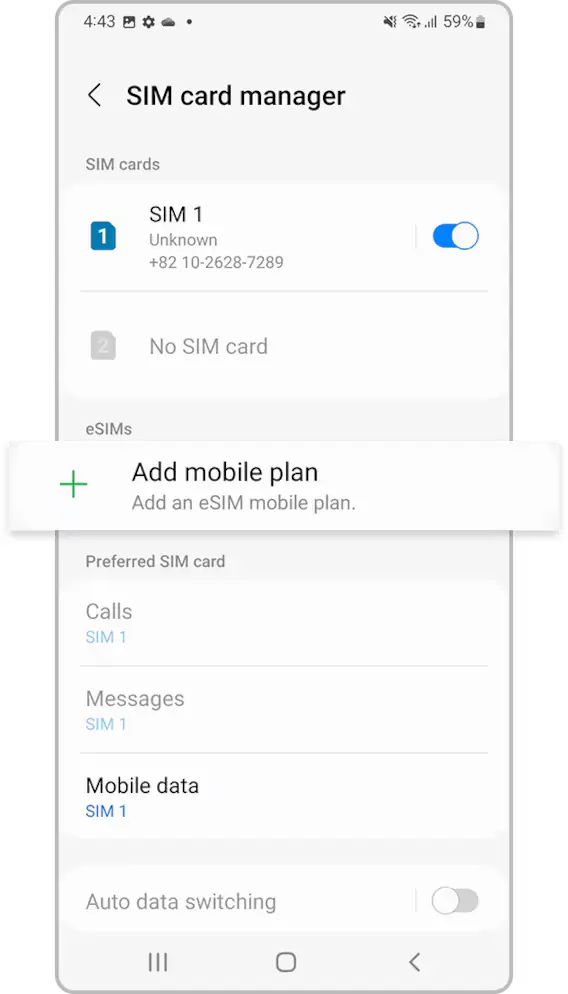
3. Tap "Add eSIM/Mobile plan"
Select "Add eSIM/Mobile plan" from the SIM manager menu
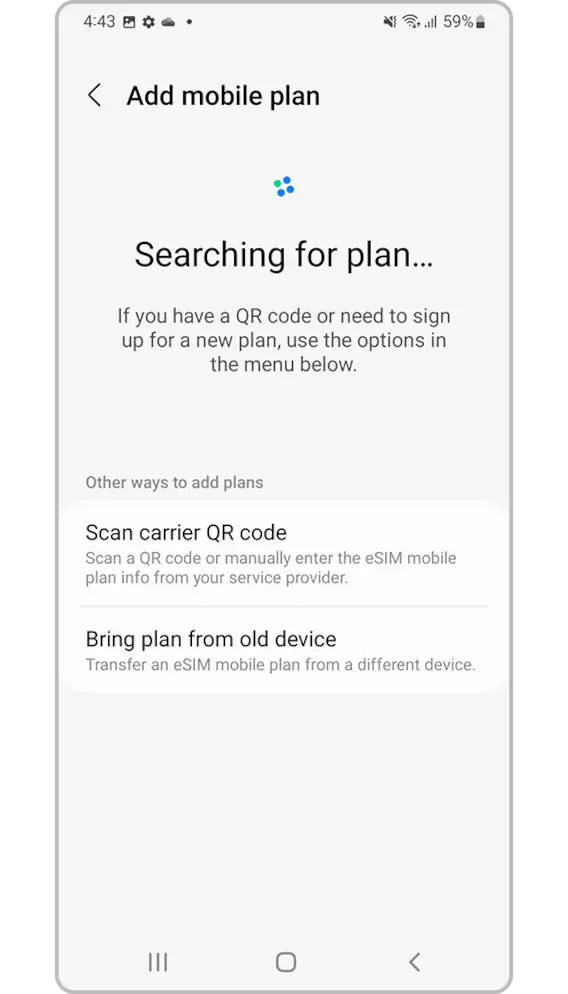
4. Click "Scan QR Code"
Tap "Scan QR Code" to scan the QR code received by email
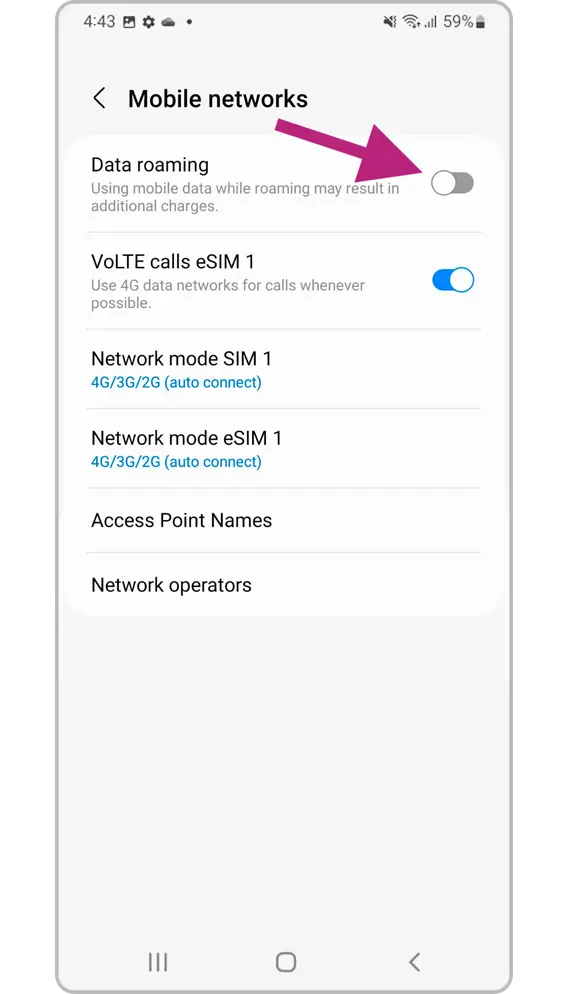
5. Make sure you have data roaming enabled!
⚠️ CRUCIAL: After installation, ensure data roaming is enabled on your new eSIM for it to work properly.
Samsung Manual Setup Instructions
If you cannot scan the QR code, you need to follow the manual setup instructions:
- Go to "Settings", tap "Connections", then tap "SIM card manager" on your device.
- Tap "Add mobile plan", then tap "Scan carrier QR code".
- Tap "Enter activation code".
- Enter the SM-DP+ Address & Activation Code by copying it, tap "Connect", then tap "Confirm".
Google Pixel Phone
1. Go to Settings > Connection
Open Settings and navigate to Connection settings
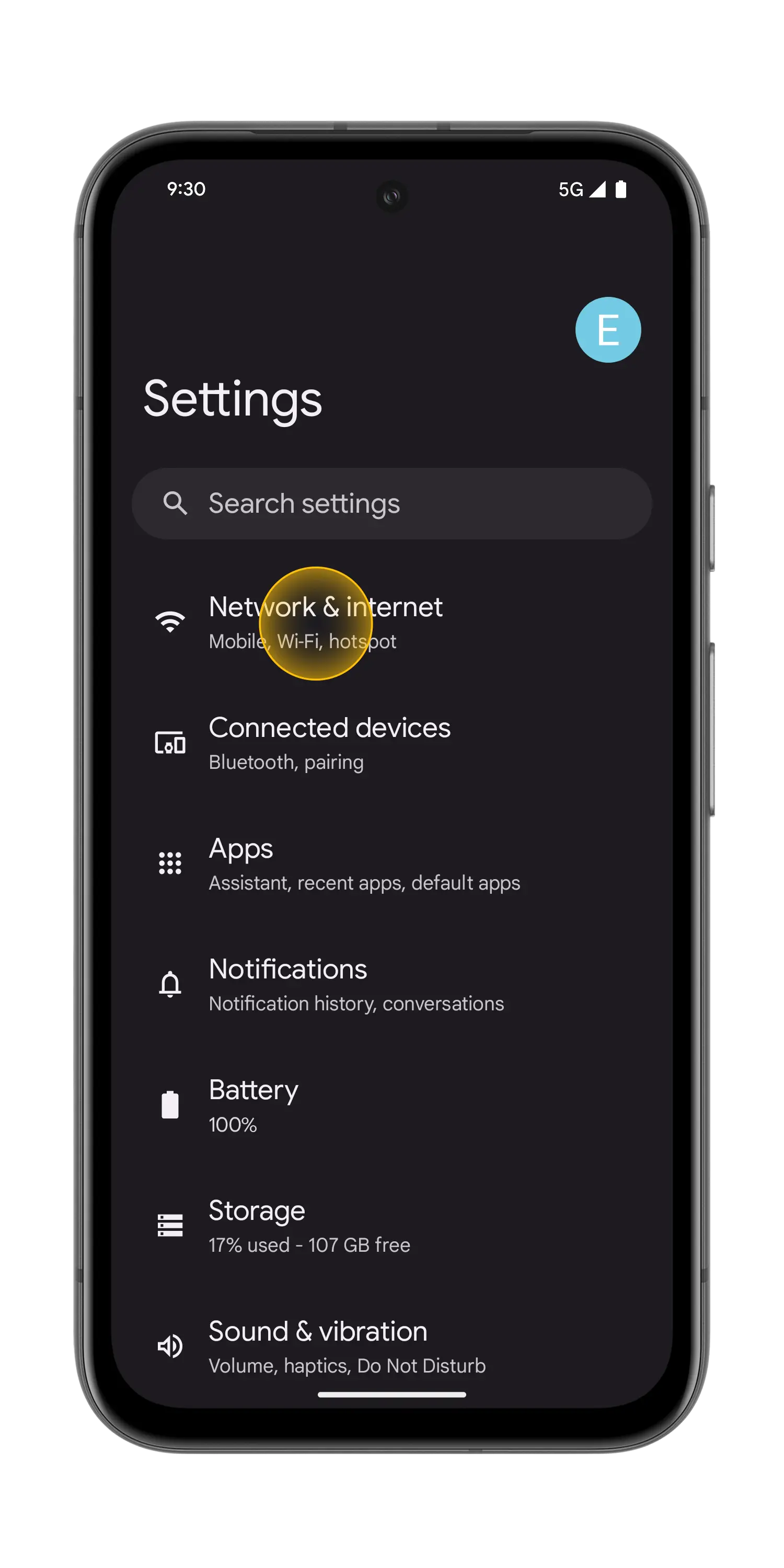
2. Tap on "SIM manager"
Find and tap on "SIM manager" in the Connection settings
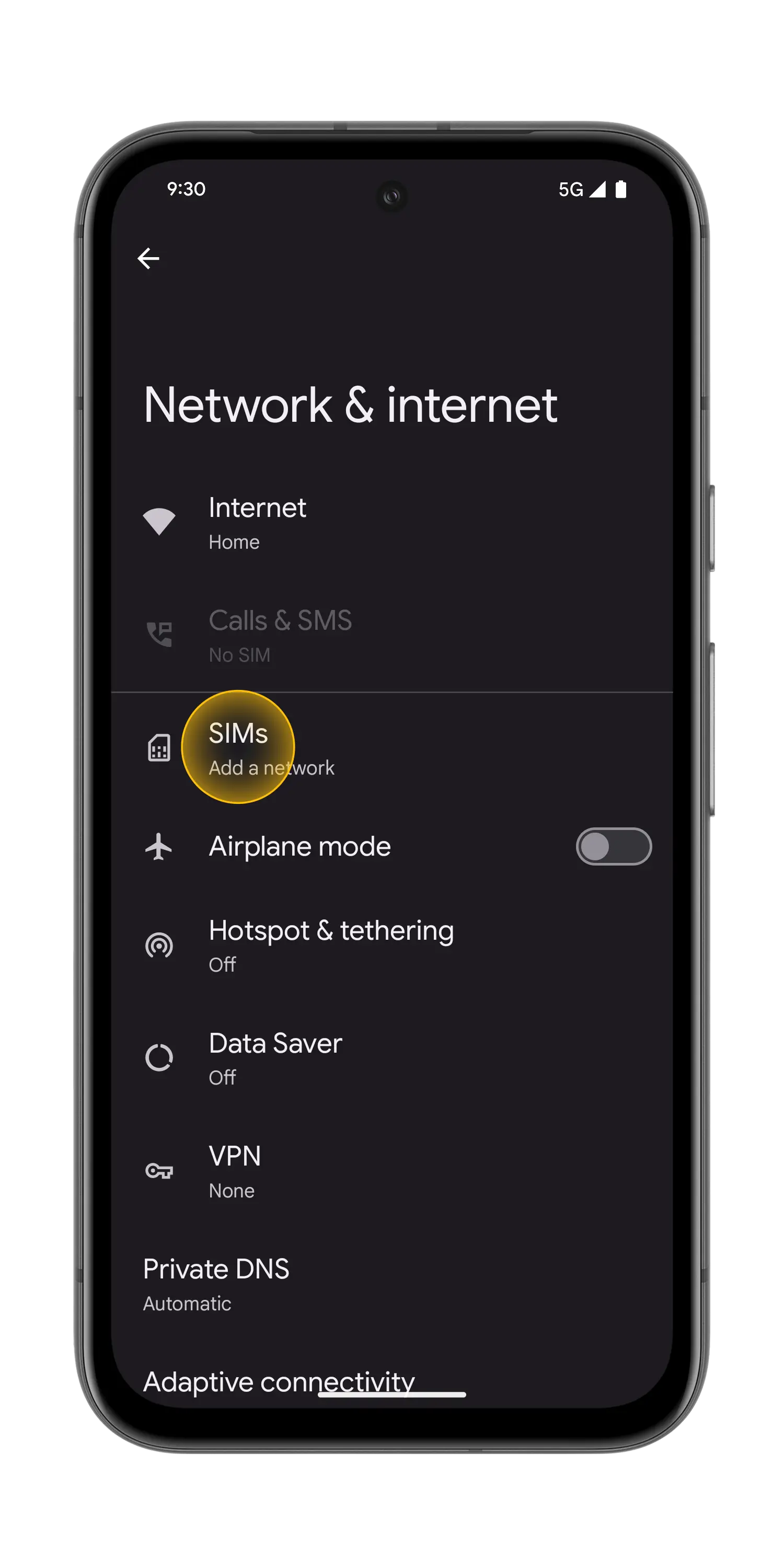
3. Tap "Download eSIM" and Scan the QR code
Select "Download eSIM" and scan the QR code received by email
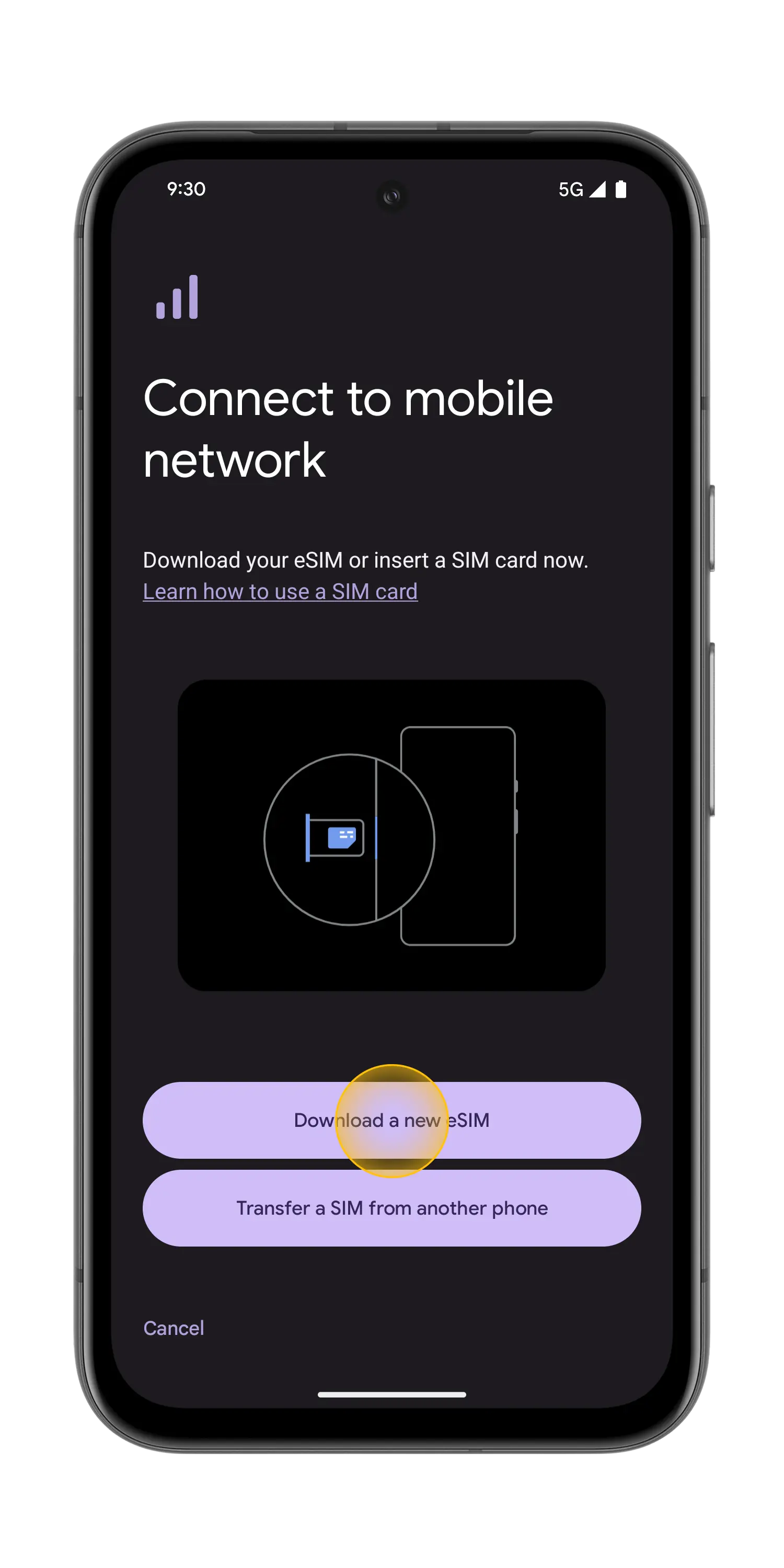
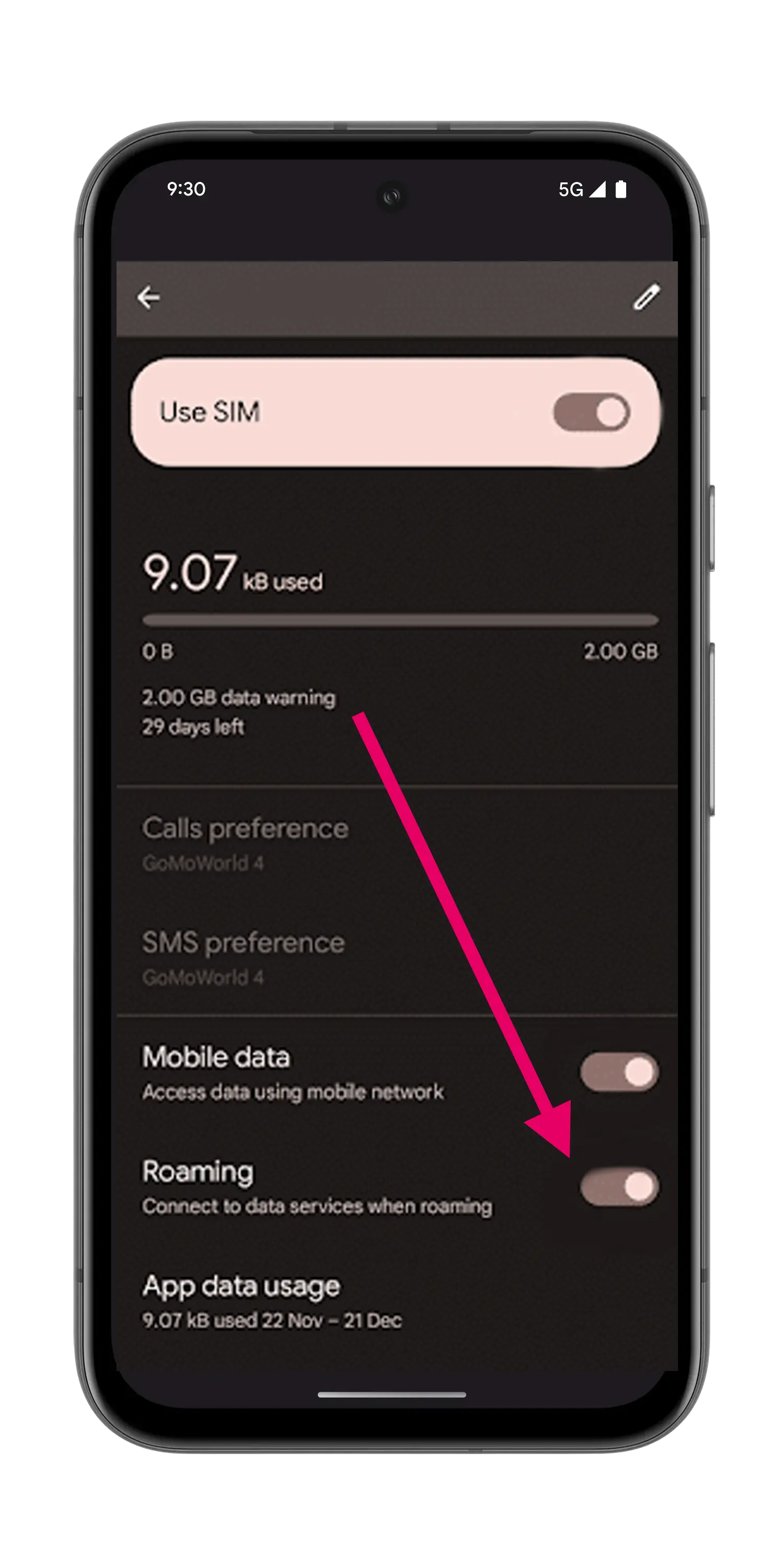
4. Make sure you have data roaming enabled!
⚠️ CRUCIAL: After installation, ensure data roaming is enabled on your new eSIM for it to work properly.
Pixel Manual Setup Instructions
If you cannot scan the QR code, you need to follow the manual setup instructions:
- Go to "Settings", tap "Network & internet", then tap "(+)" next to the SIMs section, if it's not available tap "SIMs/Mobile network" on your device.
- Tap "Download a SIM instead?", then tap "Next".
- Tap "Use a different network" if you need to confirm your network.
- Tap "Need help?", then tap "Enter it manually".
- Enter the SM-DP+ Address & Activation Code by copying it, tap "Continue", then tap "Download/Activate".
- Tap "Settings/Done" when you see the Download Finished screen.
Xiaomi Phone
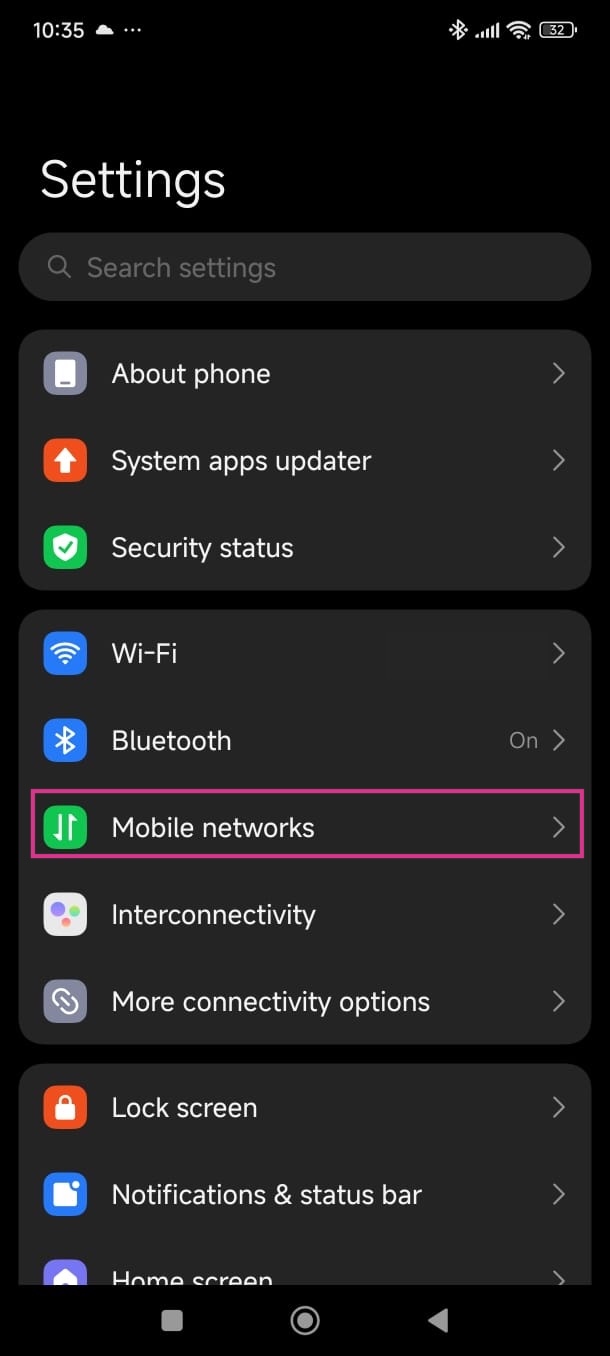
1. Go to Settings > Mobile networks
Open Settings and navigate to Mobile networks
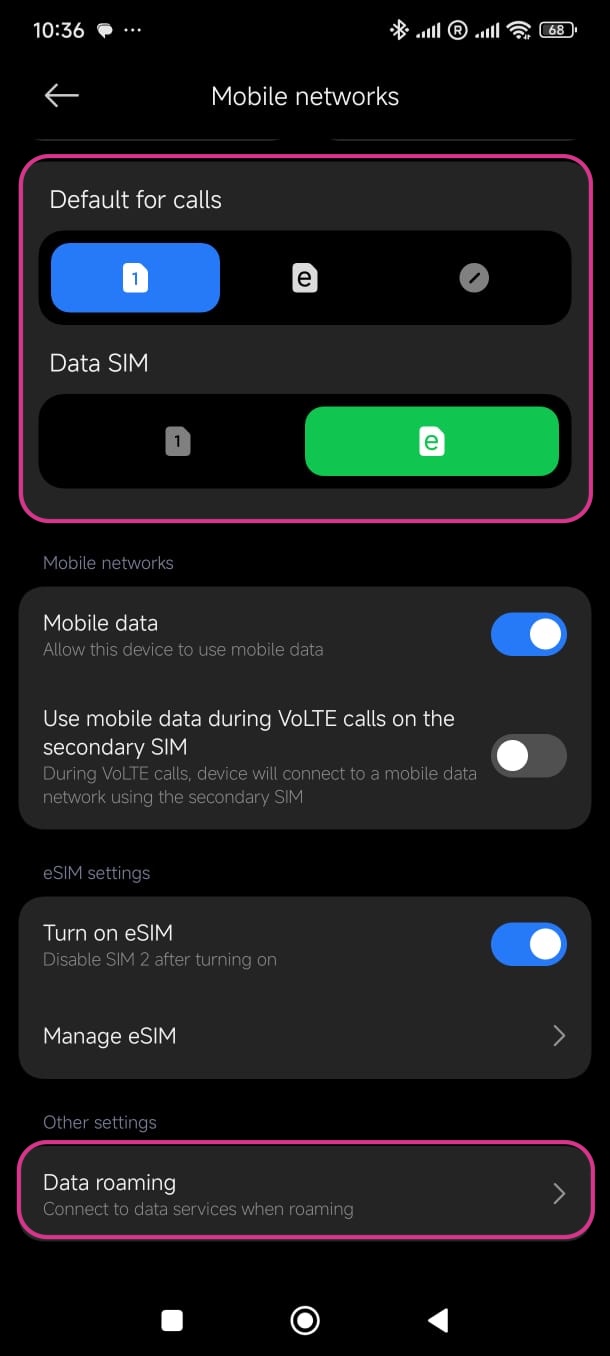
2. Turn on eSIM and Tap on "Manage eSIM"
Enable eSIM and tap on "Manage eSIM" option

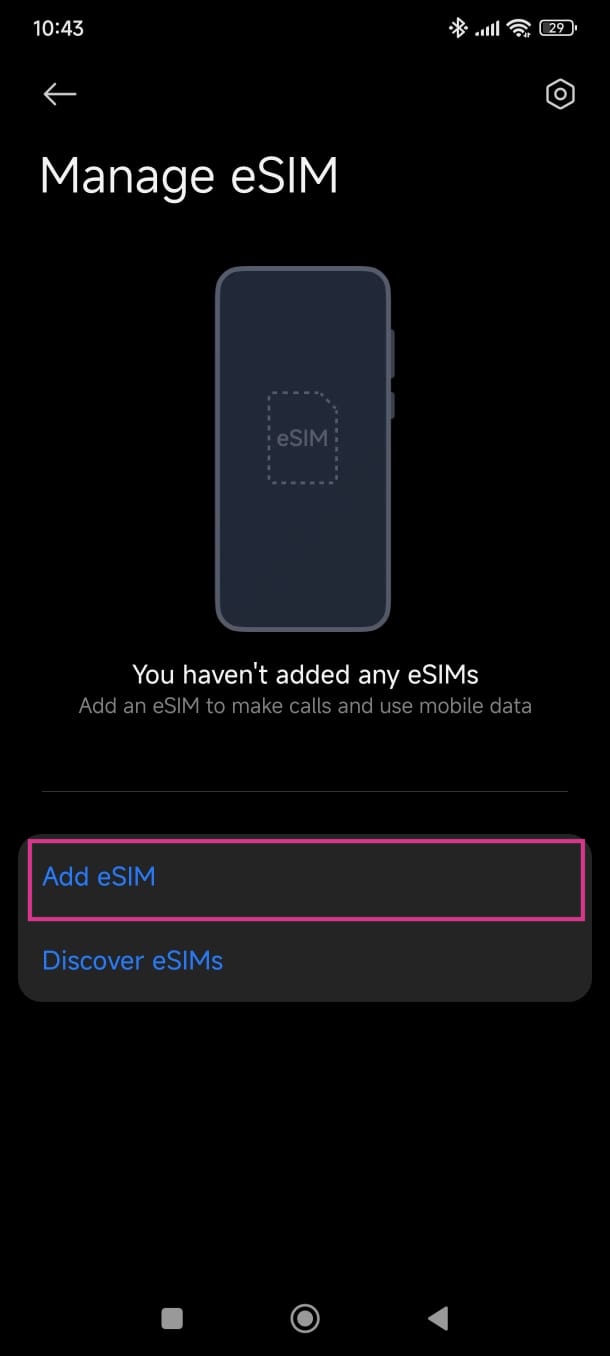
3. Tap "Add eSIM" and Scan the QR code
Select "Add eSIM" and scan the QR code received by email
4. Ensure your eSIM is set for mobile data, calls are on your main line, and data roaming is enabled.
⚠️ CRUCIAL: After installation, ensure your eSIM is set for mobile data, calls are on your main line, and data roaming is enabled.
Xiaomi Manual Setup Instructions
If you cannot scan the QR code, you need to follow the manual setup instructions:
- Go to "Settings", tap "Mobile networks", then tap "Manage eSIM".
- Tap "Add eSIM".
- Instead of scanning the qrcode, push "Add manually instead"
- Tap "Use activation code".
- Enter the SM-DP+ Address & Activation Code by copying it, tap Ok, then tap "Add".
- Tap "Got it" when you see the Download Finished screen.
Troubleshooting
If you experience any issues during installation or activation:
- Ensure your device is connected to Wi-Fi during the installation process
- Make sure you have the latest iOS/Android version installed
- Verify that your device supports eSIM technology
- Check that you have entered the correct activation details
- Contact our support team if problems persist
Remember to keep your installation email in a safe place until you're sure the eSIM is working correctly. If you experience any issues during or after the installation, contact our support team for assistance.
⚠️ CRUCIAL REMINDER: After installing your eSIM, you MUST enable data roaming on the new eSIM for it to work properly. Go to Settings > Mobile Service/Cellular > [Your eSIM] > Data Roaming and enable it. This is essential for your eSIM to connect to mobile networks.
Can't find what you're looking for? Contact our support team now.